How-To’s

How to Select the Forecast Date and Time

The forecast date and time step selector, found at the bottom of the screen, can be used to select a specific forecast of interest.

Forecast date and time step selector of the INLINE platform when summary layer products are visualised.

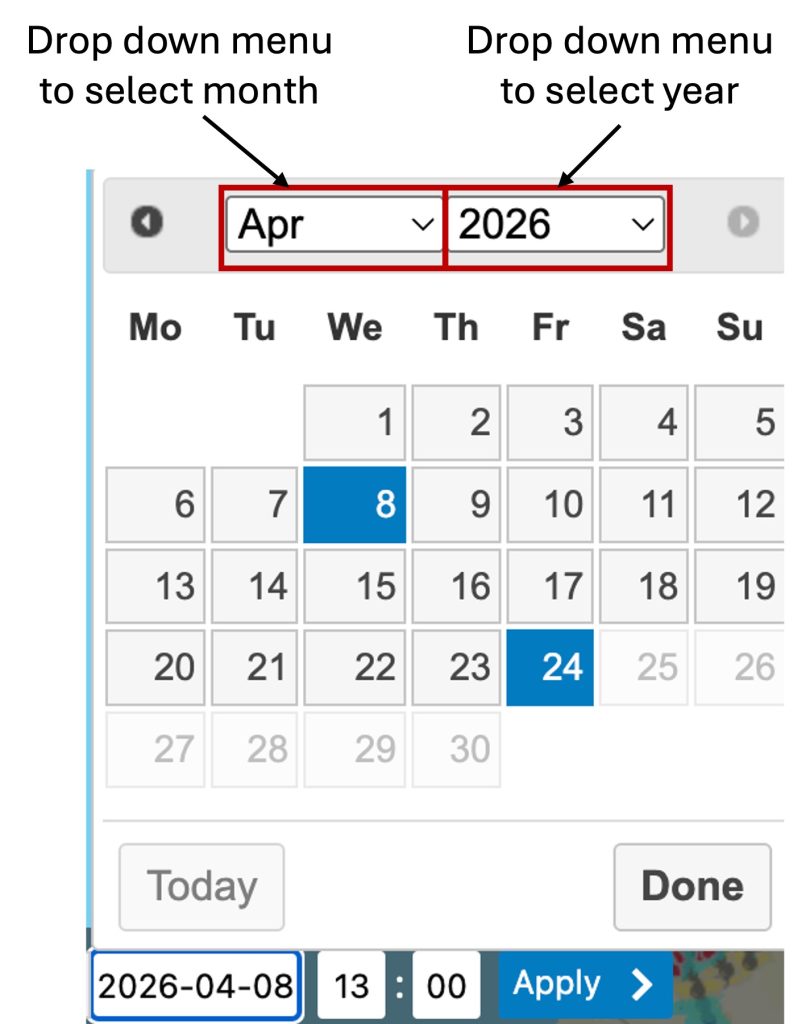
To select a forecast date, click on the date which is located in the top left of the selector. This action will bring up a calendar, shown below. To select a forecast created in a different month, click on the month drop down menu. To select a different year, click on the year drop down menu. Next, click on the date of interest. If the calendar does not automatically disappear once you have clicked a date, click on ‘Done’ in the bottom right corner.

Calendar to select the forecast date of interest.

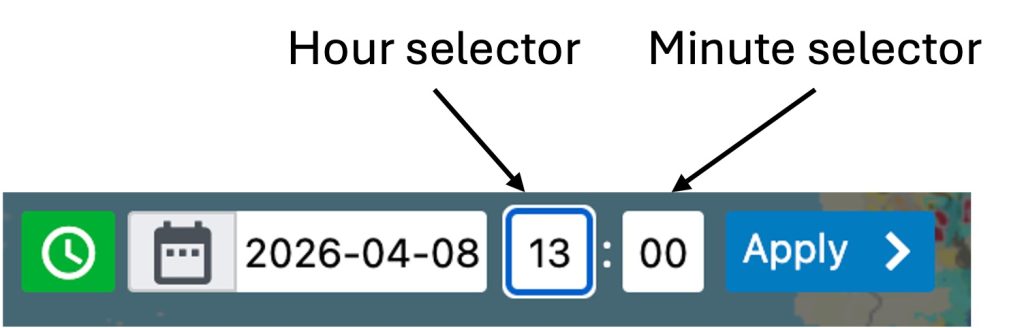
To select the time when a forecast was created, you can use the hour and minute drop down menus. All times are given in UTC and not local time. When each selector is clicked, a drop down menu appears, the user can click on the hour and minute of interest. Please note that the minute selector is only applicable to layers in the Storm Impacts group of layers, four options are available: 00, 15, 30, 45 – reflecting that these layers are produced every 15-minutes.

Hour and minute selectors to choose a specific forecast of interest.

Click on ‘Apply’ to load the forecast which was created at the selected date and time. The selected layers which are visualised in the platform will then be updated to reflect the forecast produced at this date and time.

How to View the Forecast Layers

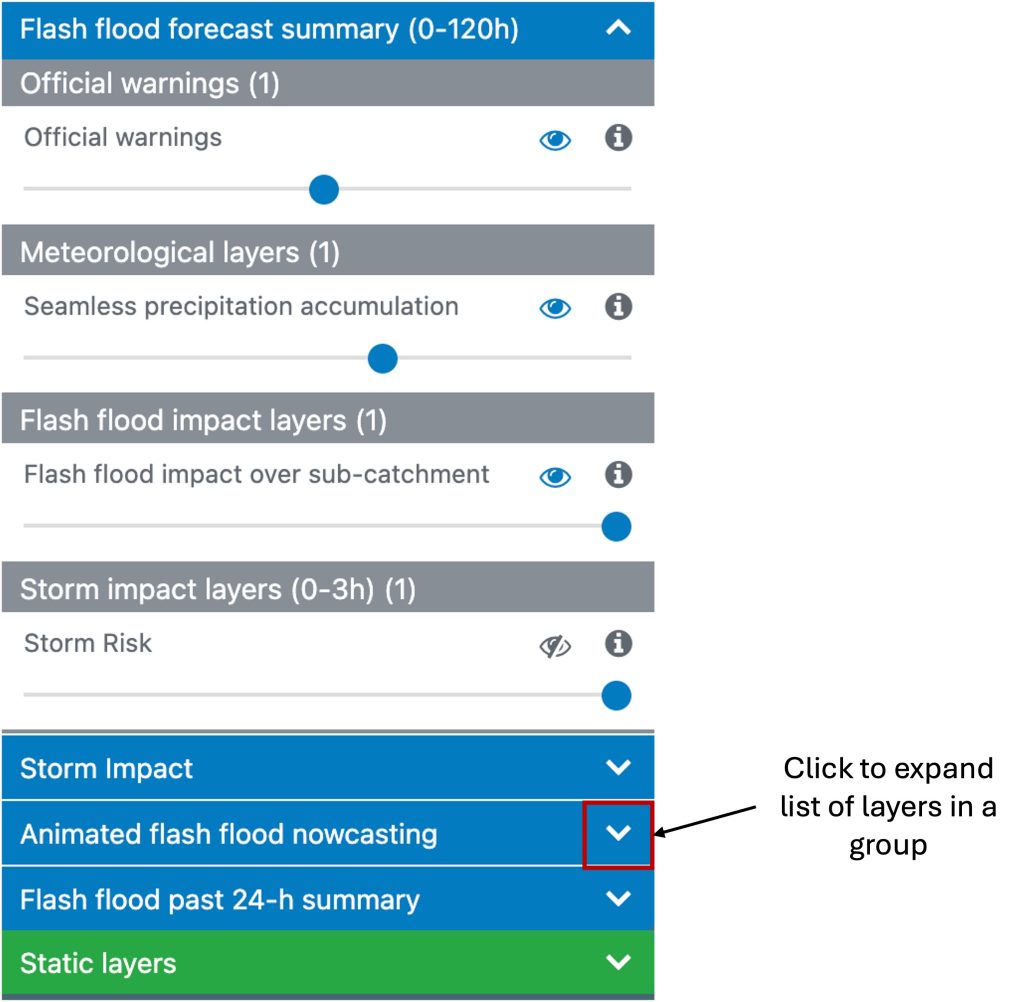
By default, the platform will load the layers from the group called ‘Flash flood forecast summary (0-120h)’. To view layers from a different grouping, click the expansion arrow to expand the list of layers available.

Click on the expansion arrow to view the list of layers available within a different group.

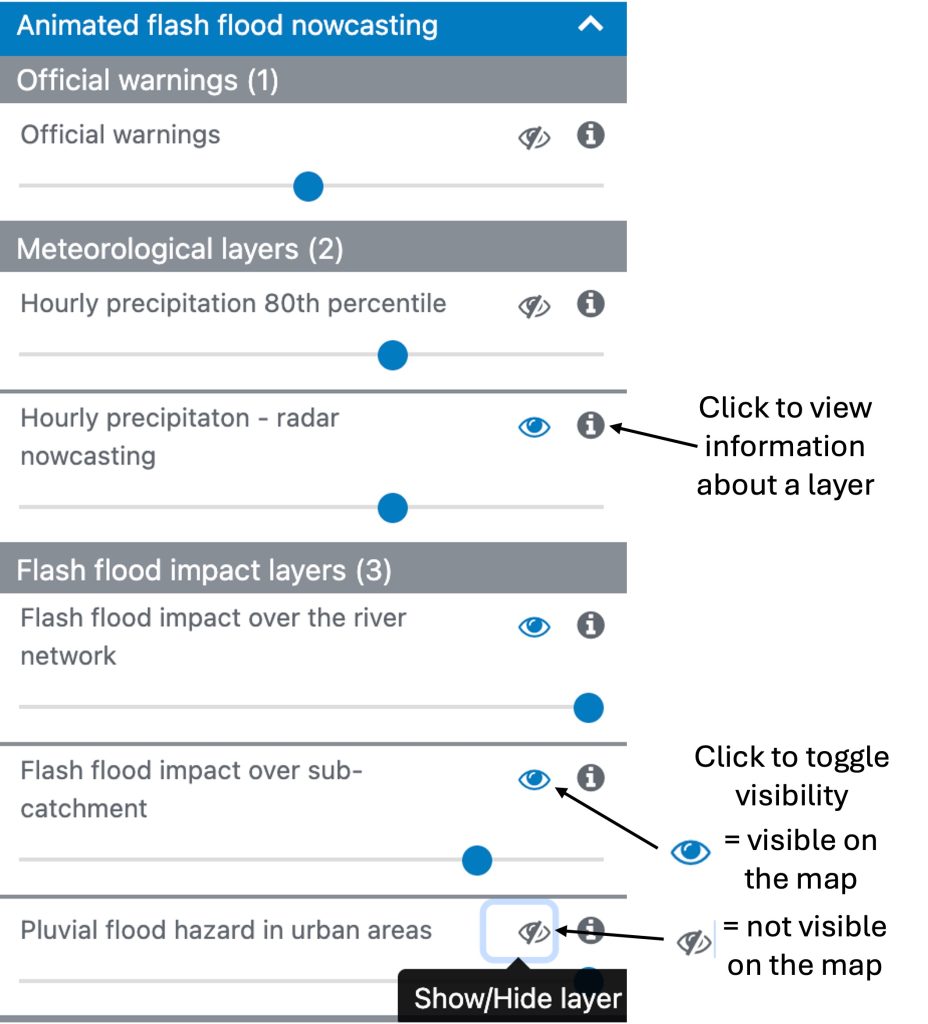
Use theicon to toggle the visibility of different layers. The visibility toggling is automatically applied to the layers which are shown in the mapviewer. Information about each layer will appear in a pop out window when theis clicked.

Click on the 'eye' icon to toggle the visibility of layers on and off. The 'i' icon can be used to display the information about a layer in a pop out window.
How to Set up and Configure Notifications

It is possible to configure tailored notifications to inform you when a flash flood event is forecasted in your area of interest. You can tailor the following criteria:

  • Flash flood forecast products of interest
  • Area of interest
  • Minimum warning level
  • Whether you wish to receive email notifications
    • Which email addresses receive these notifications
    • How frequently you receive these email notifications

To configure a notification, firstly click on icon on the right-hand side of the web platform.
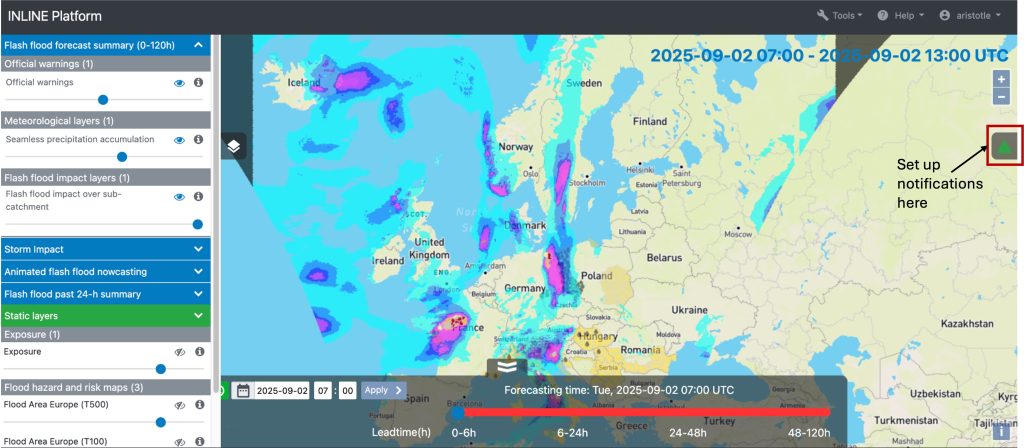
Click on the triangle icon on the right-hand side to bring up the notifications sidebar to set up and configure notifications.

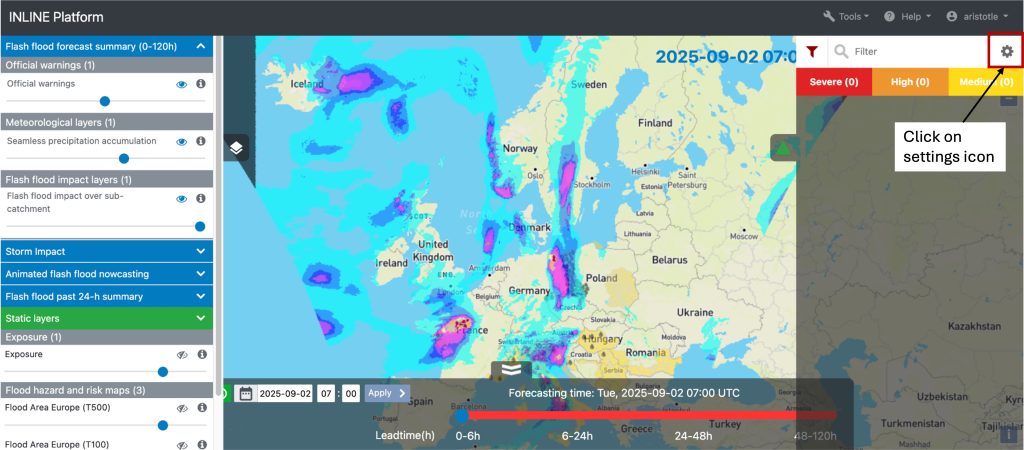
Next, click on the icon to set up a new notification.

    Click on the settings icon in the top right to set up a new notification.

    A window will appear which has two tabs: Mail and Domain. The Mail tab will appear first, use this to specify:

    • Whether to receive email notifications
      • Which email addresses receive these notifications to
      • How frequently to receive the email notifications
    • The products you wish to receive notifications for
    • The minimum warning level to trigger a notification
      • E.g. if you select ‘severe’, you will only receive a notification if the selected forecast products equal or exceed this level
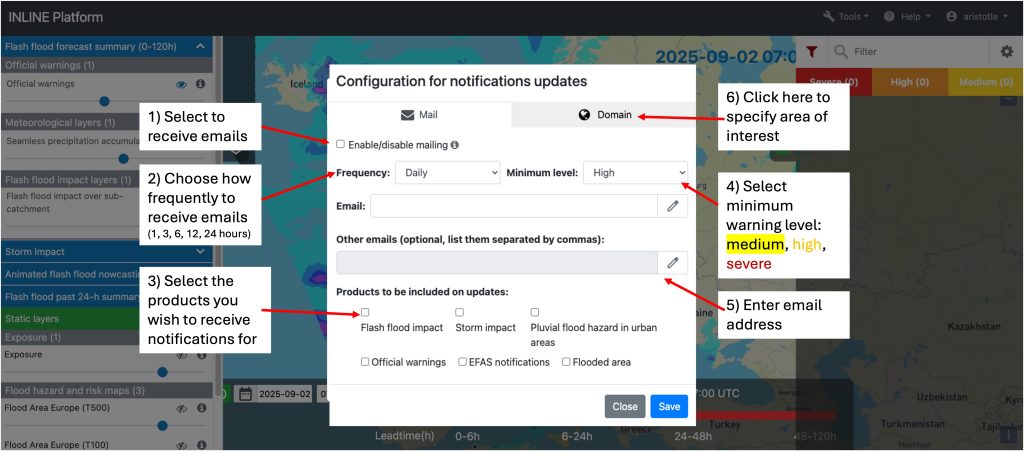
    Instructions for specifying the criteria for receiving a notification within the Mail tab.

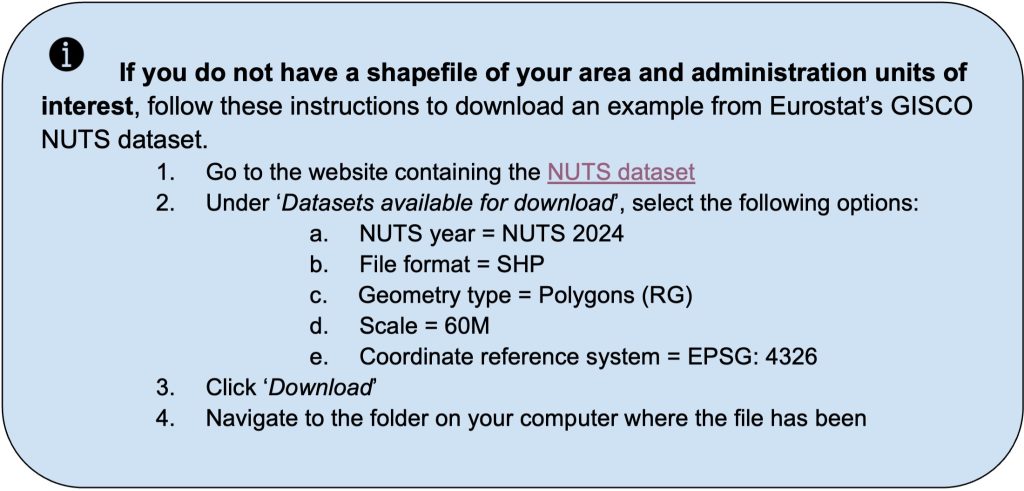
    After specifying these criteria, click on the Domain tab to specify your area of interest. Use this form to upload a .zip file which contains an ESRI Shapefile of your area of interest, more information about the data format is given in the blue box when it is clicked. Your uploaded .zip file should also include the polygons for the administrative regions which you wish to receive notifications for.
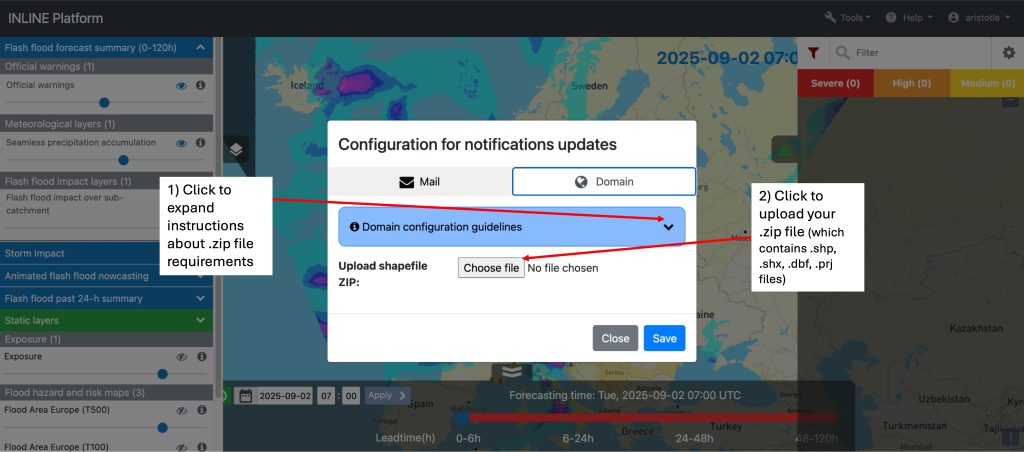
      Click on the Choose file button, to upload your .zip file.
      In the Domain tab, click Choose file to upload a .zip file of your area of interest.

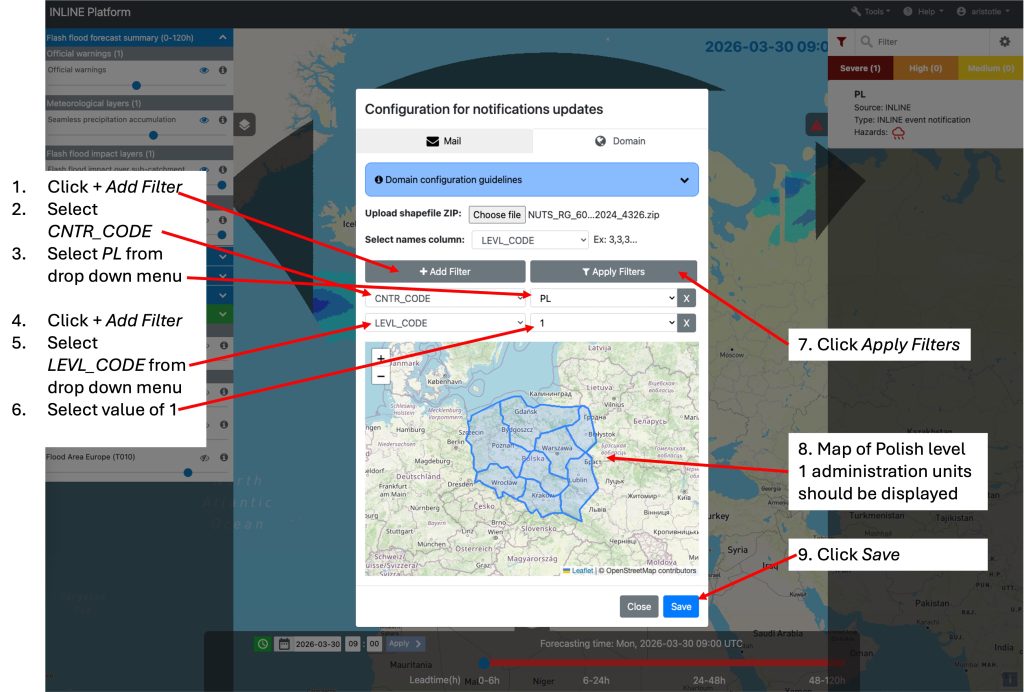
      The next step is to configure your area of interest. Below we give an example of using the GISCO NUTS dataset, downloaded following the instructions above, to set up notifications for level 1 administration regions of Poland.

        Example of specifying Poland as the area of interest, and level 1 administration units as the aggregation unit for the notifications.

        After clicking Save, notifications which meet the specified criteria will be displayed in a sidebar on the right hand side of the web platform. The sidebar can be expanded by clicking the icon.
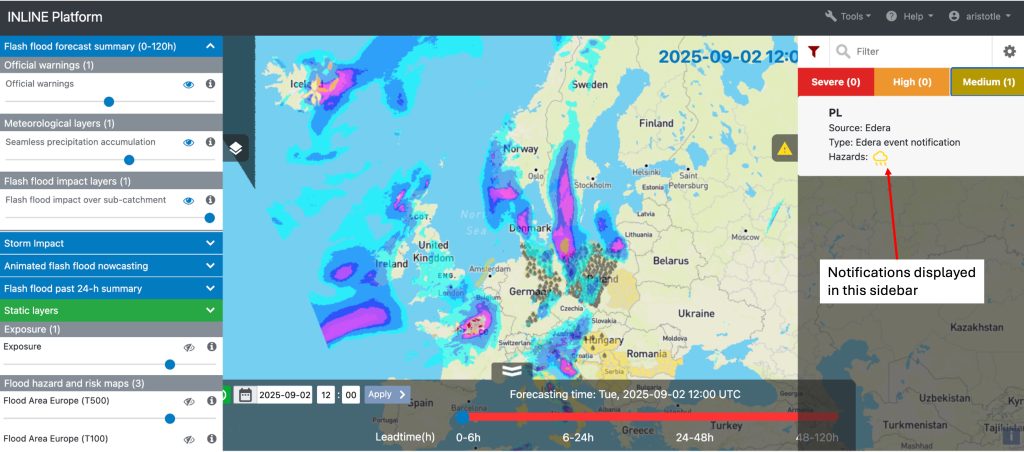
          Example of configured notifications appearing in the notification sidebar.

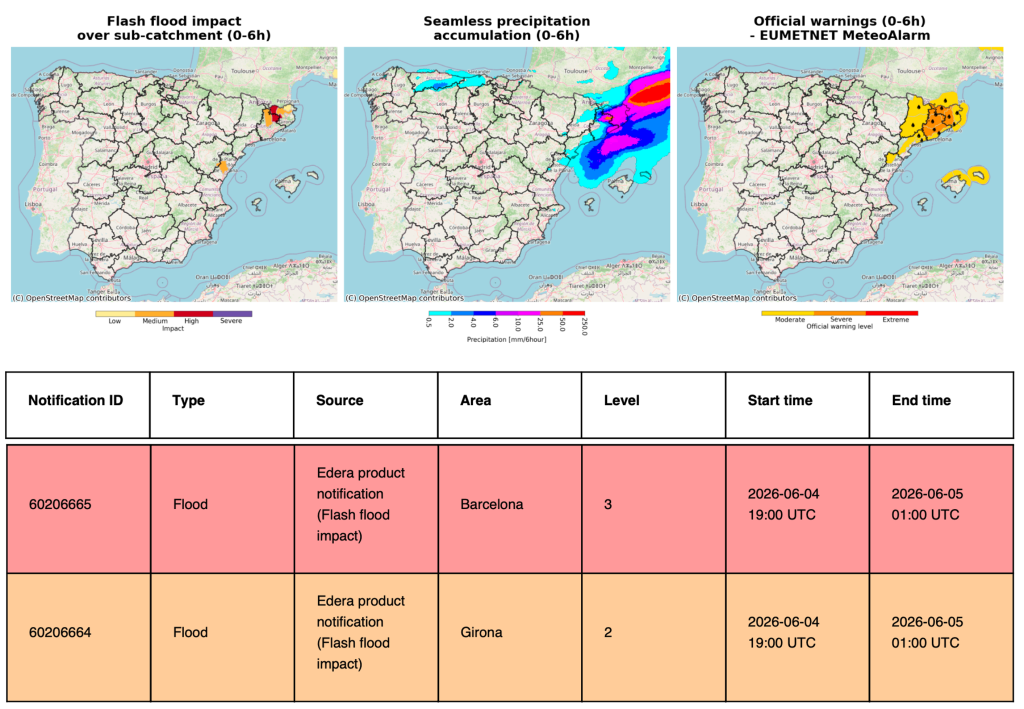
          If you have chosen to receive email notifications, these will be sent to the nominated address(es) and will appear similar to the example below. The Active notifications table contains one row for each administration and selected forecast product where the notification criteria are met. Currently it is not possible to specify which maps appear at the top of the email.

            Example of a notification email.
            How to Provide Feedback

            Users can provide feedback to the INLINE project team through a form about the following:

            • Evaluate the performance of a notification which a user received – for example if the notification was correct (a hit), or was a false alarm
            • Report an event which was not forecasted by the INLINE products – i.e. a missed event
            • Provide feedback about the INLINE products for an event, but the user has not signed up for notifications

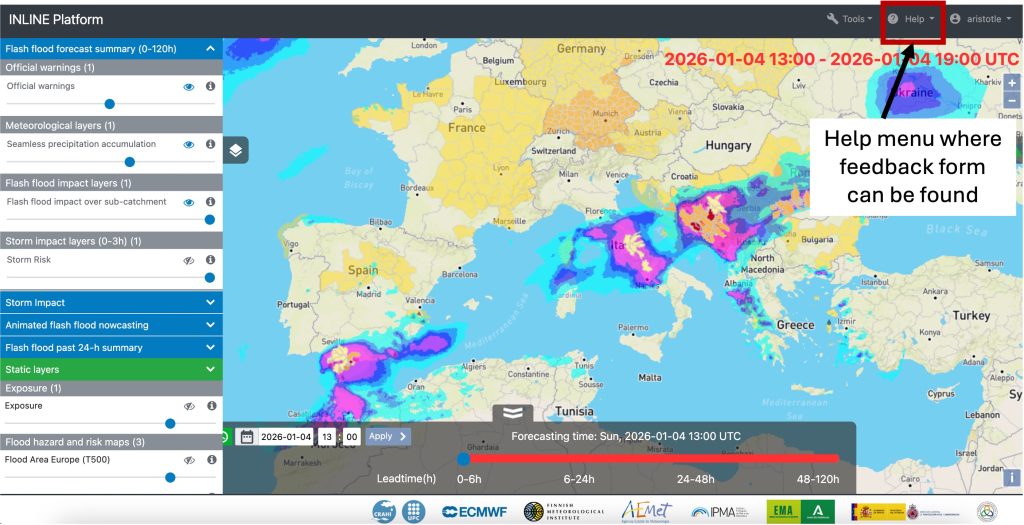
            To access the form, click on the Help menu in the top right corner of the platform.

            The feedback form can be accessed from the Help menu in the top right corner of the platform.

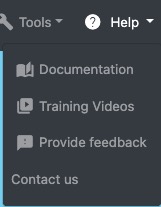
            Next, click on the Provide feedback option from the drop down menu.

            Select Provide feedback from the drop down menu under Help.

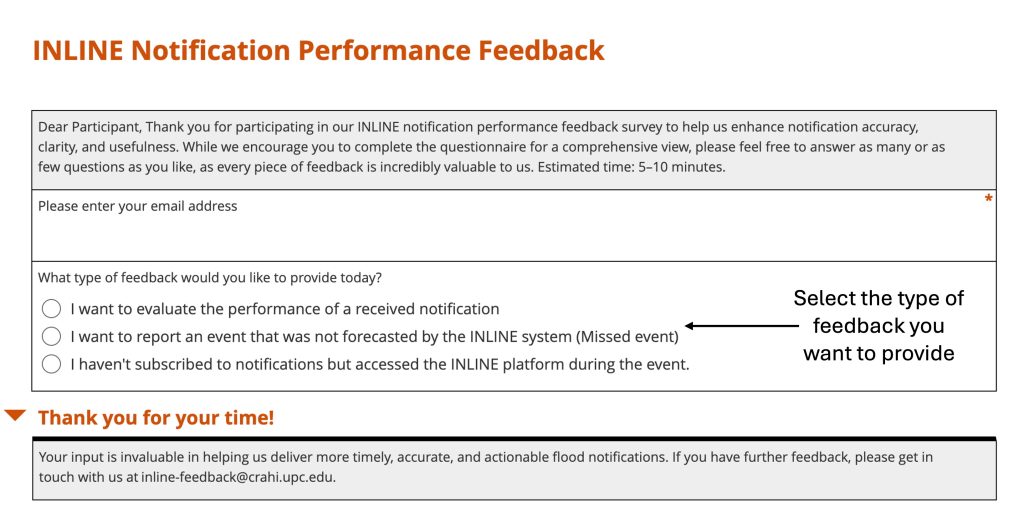
            A form will appear in a new tab in your web browser. The form will have three options about the type of feedback you wish to provide, select the feedback you want to provide.

            The initial appearance of the feedback form, you must select the type of feedback you wish to provide.

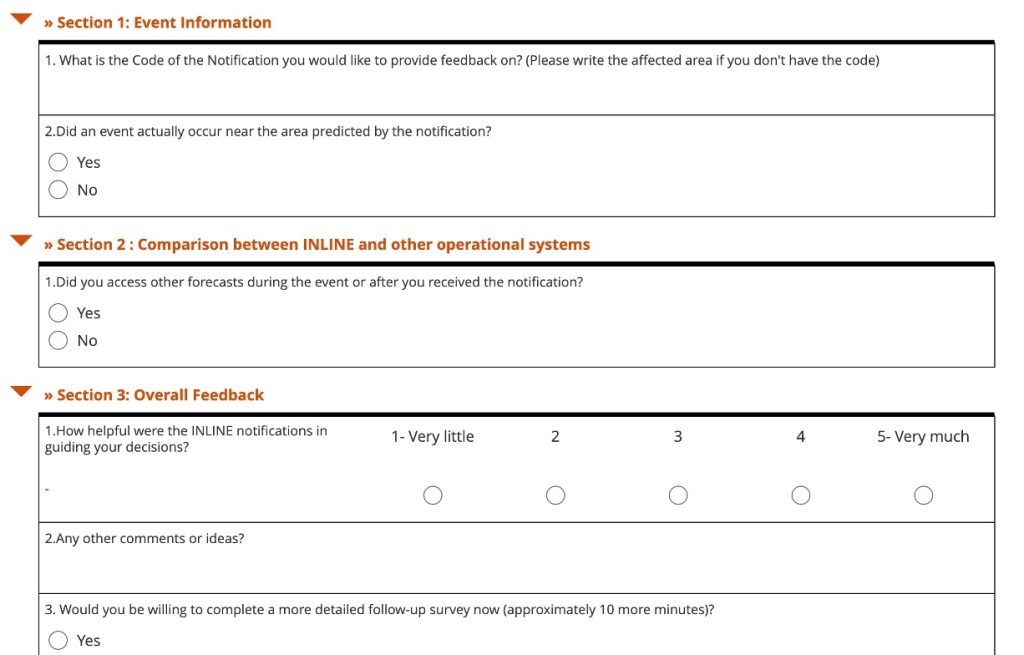
            Depending on the option you selected, the form will expand to include additional questions. Please fill out your responses, then click Submit when you have finished.

            Additional questions which appear in the feedback form after you have selected the type of feedback you wish to provide.