Home
Welcome to these pages about the INLINE web platform, how to use it and the forecast products contained within it. Below, you will find an overview of the web platform and its main functionalities. Elsewhere in these pages, you can find the following information:
- How-to’s – which show how to perform certain tasks in the platform:
- Tutorials
- Walkthroughs which show how to use the forecast layers to analyse past flood events
- Layers reference
- Brief descriptions of all the layers in the INLINE web platform
- Explanation – Methodologies to create the layers
- Detailed scientific explanation of the three main workflows to generate the INLINE forecast products
Registering for Access to the Platform
To register for access, please fill out the form at: https://gebrada.upc.es/inline-platform/register.php
Overview of the INLINE Platform
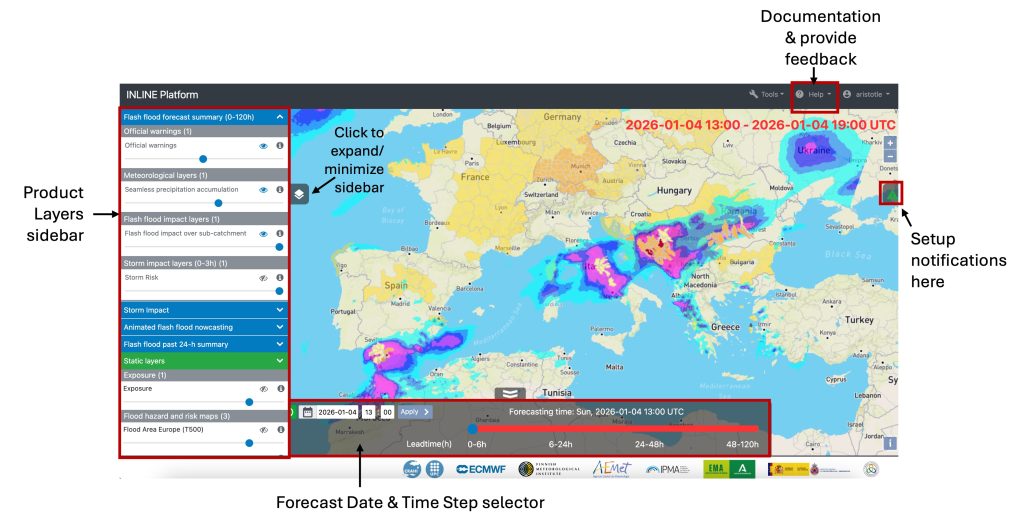
Upon accessing the platform, you will be presented with the main map interface in full-screen mode, showing the latest available forecast. There are four main features of the web platform to note: 1) product layers sidebar, 2) forecast date and time step selector, 3) documentation and feedback provision, 4) set up on notifications.
Product Layers Sidebar
After selecting a date of your chosen forecast, if the sidebar of layers is not visible on the left side of the web viewer, expand the sidebar by clicking the ‘layers’ icon
on the left side of the screen. The layers sidebar houses the five blocks of products, which are explained in the ‘List of Layers’ section below.
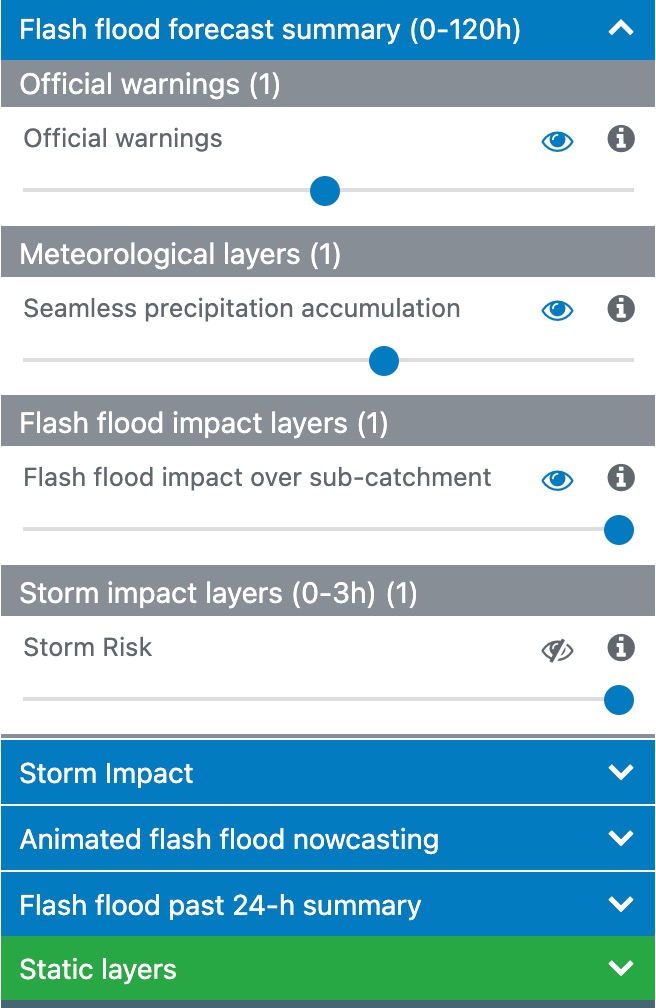
The layers sidebar provides access to the various products, allowing you to switch between the products seamlessly. In blue are four blocks of different flash flood products and static products are available in green.
Layer Management
You can toggle the visibility of each layer using the ‘eye’ icon

, adjust opacity through the provided slider, and access detailed descriptions and legends using the ‘i’ icon

for each layer.
Forecast Date and Time Step Selector
The forecast date and time step selector, at the bottom of the web platform can be used to select the forecast and time step of interest. The selector can be minimised using the ‘down arrows’ icon
.
- Forecast Date Selector: On the left-hand side, you can select a forecast date and time of interest. Select the date/time of interest and click ‘Apply’, this will select the forecast produced at this date and time. Please note that times are in the UTC rather than local time zone.
- Forecast Time Step Selector: For selected products, on the right-hand side, you can use the time selector to scan through the different time steps of your chosen forecast, this is also referred to as the valid time or the lead time of a forecast. The left portion (in white) displays past time steps derived from observational data, while the right portion (in red) indicates forecasted data.
Notifications Panel
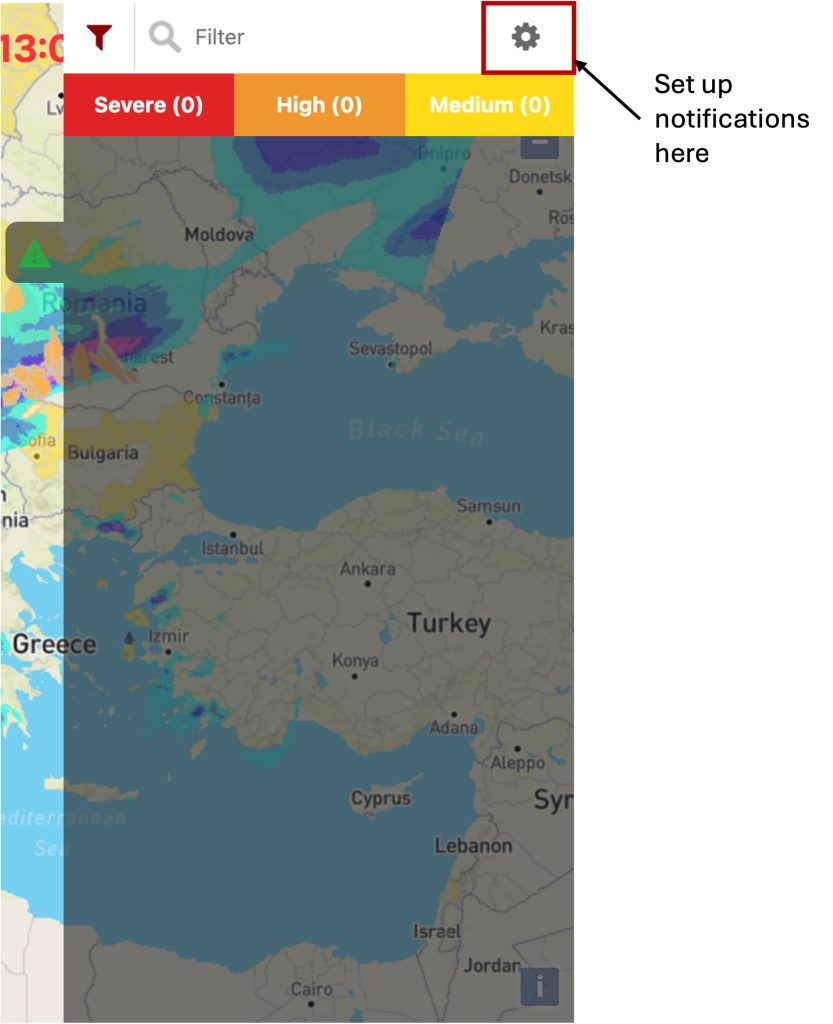
On the right-hand side of the Platform, click the ‘green’ icon to expand the notifications panel. In this panel, you can set up and configure notifications which can be emailed to you when the forecast meets or exceeds criteria which you specify. Please see this page for an explanation of how to set up notifications. If you have already set up notifications, you will see a list of all the active notifications in this panel.
More information to set up notifications can be found here.
Help Panel
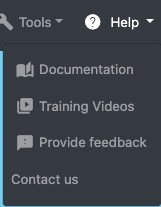
Located in the top right-hand corner of the web platform, the Help panel contains links to the training documentation (provided on these pages), training videos, a form which you can use to provide feedback, and the contact details of the INLINE project team.
More information about how to provide feedback via the form can be found here.